
Dynamic tags let you pull in live data such as a term name or post count right inside your content blocks. This page explains how to use them in built-in WordPress blocks and how to find and insert any tag quickly with the command palette.
What Are Core Blocks?
WordPress comes with its own set of built-in blocks: Paragraph, Heading, List item, Quote, and many others. These are sometimes called core blocks. By default, dynamic tags only work inside GenerateBlocks blocks (like the GenerateBlocks Text block). Core blocks do not render dynamic tags unless you turn that on.
Enabling Core Block Support
To make dynamic tags render inside core blocks, go to Settings → GB Query Enhancements → Core Block Support. There you can turn on support for up to four core blocks:
- Paragraph
- Heading
- List item
- Quote
Only blocks you enable here will actually display the live value on the front end. If a block is not in this list, or you have not enabled it, the tag will show as plain text like {{term_name}} instead of the real value.
Using the Command Palette to Find and Insert Tags
The command palette is a quick search box that lets you find any dynamic tag by name and insert it without typing the full tag yourself.
To open it, press Cmd+K on a Mac, or Ctrl+K on Windows or Linux. A search box will appear. Type part of the tag name, then click the one you want.
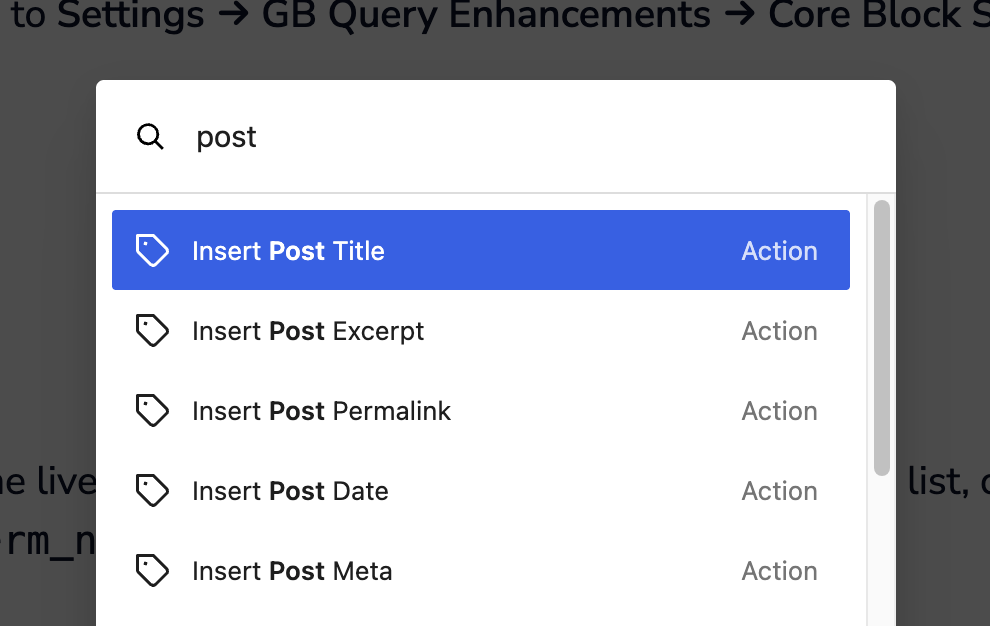
What happens next depends on which block you have selected:
- Core Paragraph, core Heading, or GenerateBlocks Text block: the tag is inserted directly into the block at your cursor.
- Any other block: the tag is copied to your clipboard instead, and you will see a “Copied to clipboard” message. You can then paste it wherever you need it.
Important: Inserting a Tag Is Not the Same as Rendering It
This is easy to mix up, so it is worth saying clearly.
The command palette will insert or copy a tag into any block. It does not check your Core Block Support settings first. That means you can paste {{term_name}} into a Quote block even if Quote is not enabled in settings.
But the tag will only render (show the real live value) if the block it lives in is enabled under Core Block Support. If it is not enabled, visitors will just see the raw tag text.
Think of it this way: inserting puts the tag in the right place; enabling the block is what turns it on.
Quick Reference
| Block | Can insert/copy via palette? | Renders live value? |
|---|---|---|
| Core Paragraph | Yes, inserts directly | Yes, if enabled in Core Block Support |
| Core Heading | Yes, inserts directly | Yes, if enabled in Core Block Support |
| Core List item | Copies to clipboard | Yes, if enabled in Core Block Support |
| Core Quote | Copies to clipboard | Yes, if enabled in Core Block Support |
| GenerateBlocks Text | Yes, inserts directly | Yes (always, no setting needed) |
| Any other block | Copies to clipboard | No |
Step-by-Step Example
Say you want a Heading block to show the current term name on an archive page.
- Go to Settings → GB Query Enhancements → Core Block Support and make sure Heading is enabled.
- In the editor, click inside your Heading block.
- Press Cmd+K (Mac) or Ctrl+K (Windows/Linux) to open the command palette.
- Type the tag name (i.e.
term name) and select it from the list. - The tag is inserted into your Heading block. On the front end, it will show the real term name.
If you had tried this with a Quote block instead, the palette would copy the tag to your clipboard. You could paste it into the Quote, but the tag would only render if you also enabled Quote in Core Block Support.